FeatureHighlight
Use the FeatureHighlight to introduce new features to users or guide new users through key functionality, positioned next to the relevant interface element.
When to use
- To direct the user's attention to something specific on the screen. For example, a new button after a feature release or a significant change in the interface.
- To draw attention to something that might not be immediately visible or obvious in the interface. For example, actions in a menu.
- In conjunction with another action. For example, when a user dismisses a microguide and you want to indicate how it can be reopened.
When not to use
- When you need to communicate a longer message. Users are more likely to dismiss lengthy content without reading.
- When the user may need to refer to the information again.
FeatureHighlightcan't be revisited unless your app retriggers it, so it's only suitable for non-critical, one-time announcements. - When you need to walk users through multiple steps in sequence or build a product tour. Use Microguide instead.
- For content that isn't highly relevant or doesn't add value in the user's current context. Any content shown should provide meaningful value.
Behavior
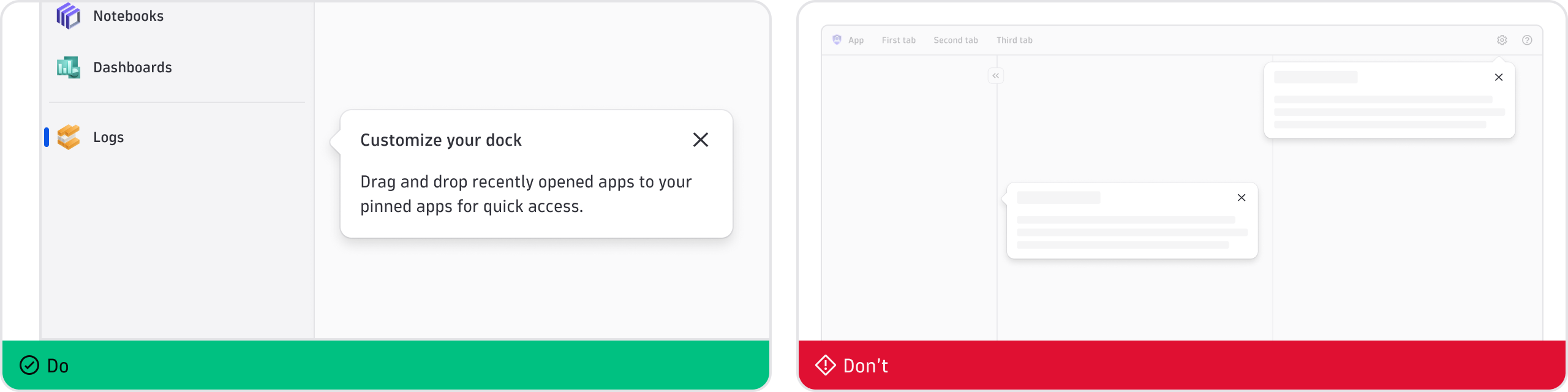
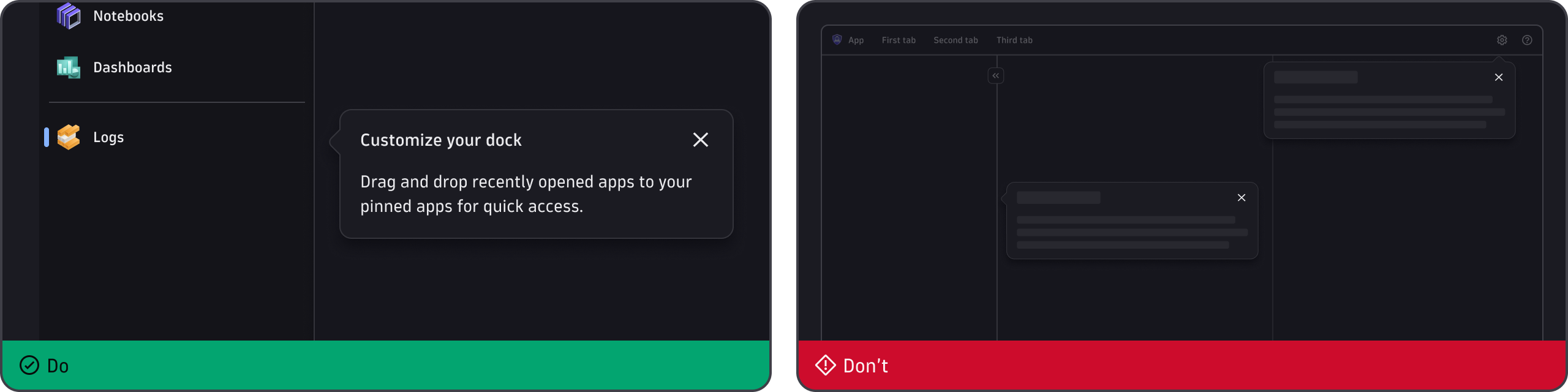
- Only show one at a time.
- Place the component in a suitable position for the layout. See Change placement for options.
- Ensure it's shown once only. Once dismissed, no other conditions should allow it to reappear.
- Be selective. Although
FeatureHighlightdoesn't block interaction, showing too many will annoy users.
Content guidelines
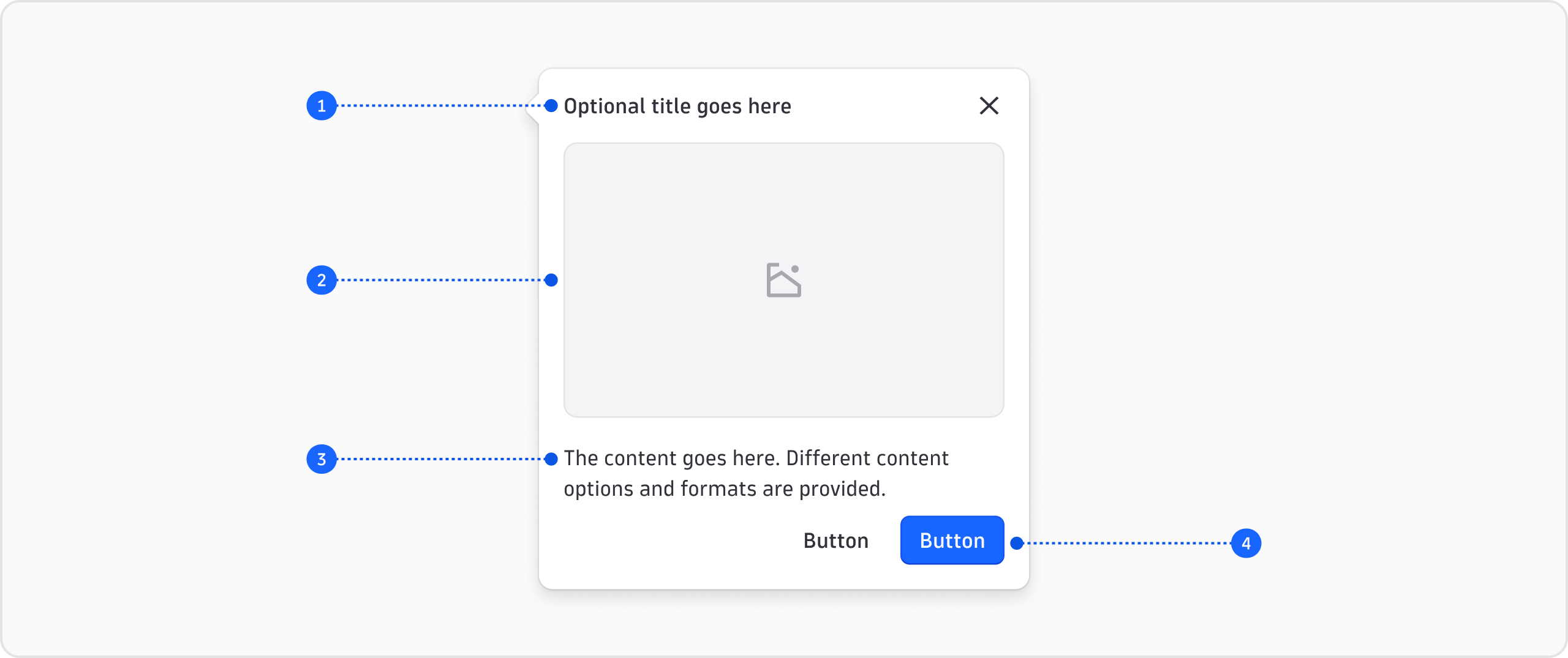
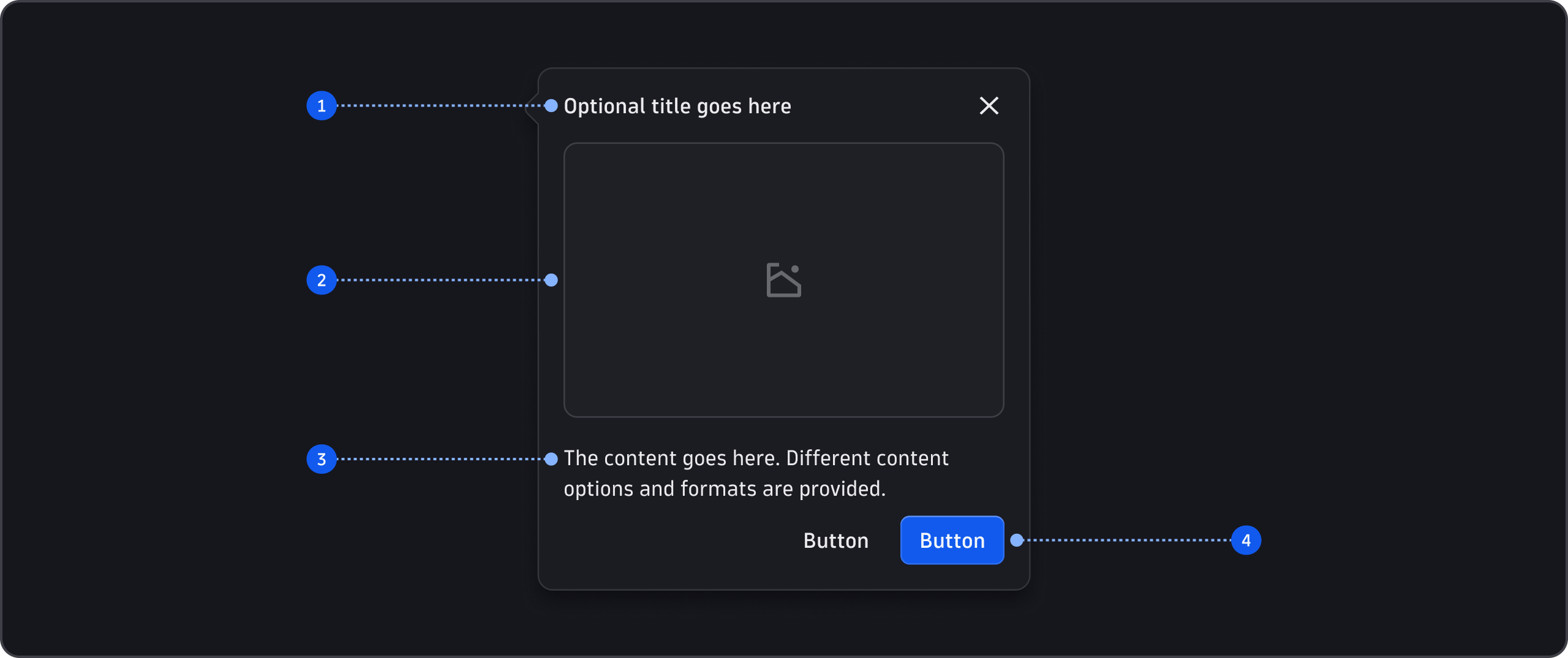
- Title (optional)
- Visual (optional)
- Content (optional)
- Actions (optional)
General guidelines
- Use sentence case (capitalize only the first word and any proper nouns, such as brand names).
Title
- Keep it clear and concise and don't include a period.
- Avoid questions as titles.
Visual
- Make sure any visuals you add are clear and legible. Use high-quality images, GIFs, or videos that are crisp and legible at the scale of the feature highlight.
- For best results, use an 8:5 aspect ratio. The actual size is 400x250px.
- Crop images to show the specific element or action you're explaining. Don't shrink a full-page screenshot to fit.
- Make sure the visual reflects the content, and vice versa.
- Test visuals with users at actual size to confirm they're clear.
- Don't include a visual unless it adds value.
Content
- Keep the content brief and action-oriented. Avoid excessive detail.
- Don't repeat the title in the content.
- If you include links, follow the usage guidance for Link.
Actions
- Use buttons for actions and follow the usage guidance for Button.
- If you need to point to more information, include a link in the content instead.