Common actions
- New
- Reference
- 10-min read
Actions let users trigger operations, navigate, or make decisions. They use icons, labels, or both to communicate their purpose. The following sections describe standard words and icons for common actions across the Dynatrace platform.
Inserting actions
These actions let users create new parent items and then add child items to the parent items.
New (or Create)
This action lets a user create something new, for example, a new guardian, workflow, or notebook.
Always include New (or Create) in the label. The verb makes the action clear without relying on the icon alone. In the table below, the words in brackets are examples. Replace them with the item to be created.
| Do | Don't |
|---|---|
| Create new | |
| New | Create new [workflow] |
| New [workflow] | Add |
| New | Add new |
| New [workflow] | Add new [workflow] |
| Create | [Workflow] |
| Create [workflow] |
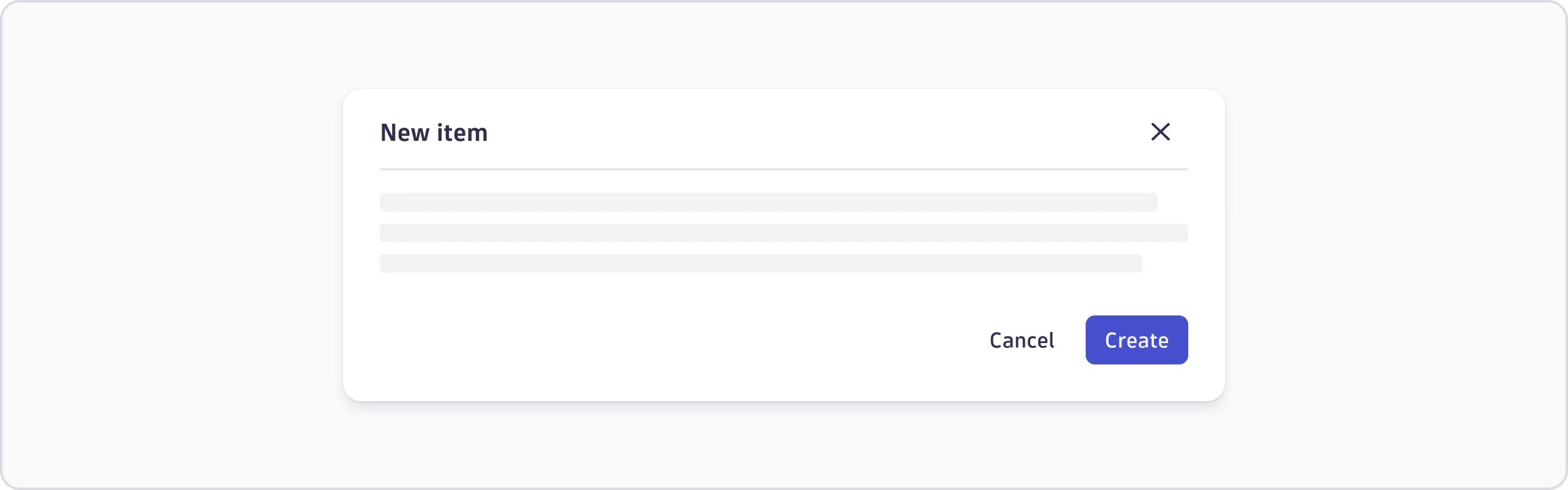
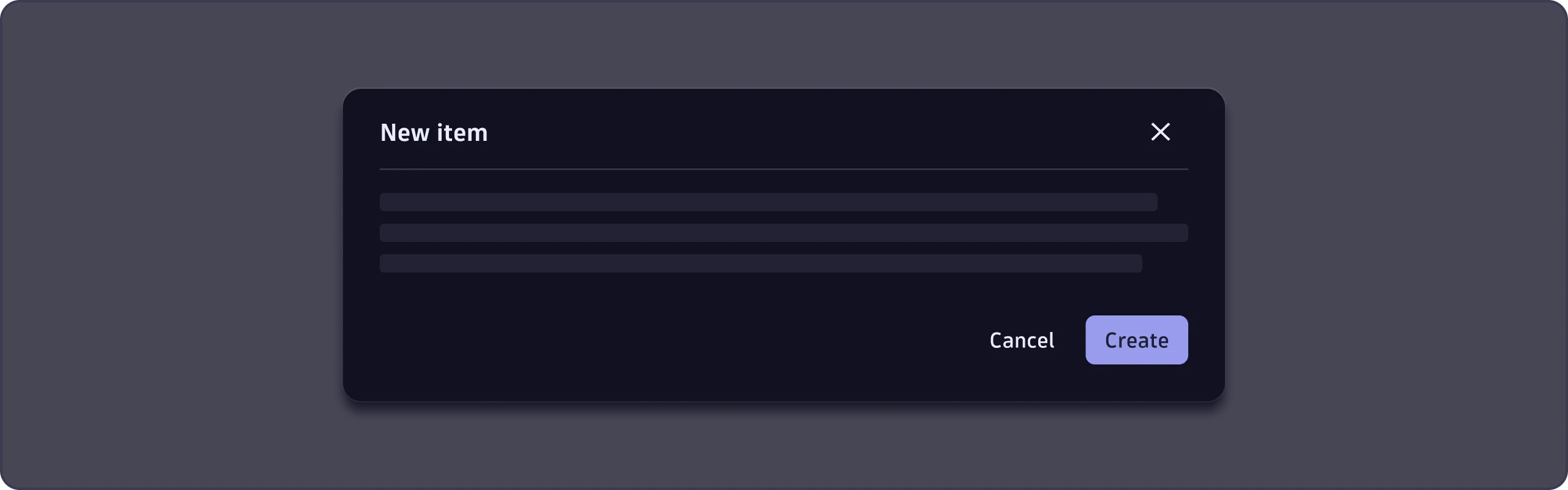
For configuration modals, it's best to use Create as the button label:
Add
This action lets a user add child items. For example, adding a section to a notebook, a task to a workflow, or tags to a guardian.
If there is a label, it must include the word Add. In the table below, words in brackets are examples. Replace them with the item to be added.
| Do | Don't |
|---|---|
| Create | |
| Add | Create new |
| Add [task] | Create new [task] |
| New | |
| New [task] | |
| Add new | |
| Add new [task] | |
| [Task] |
New vs Add
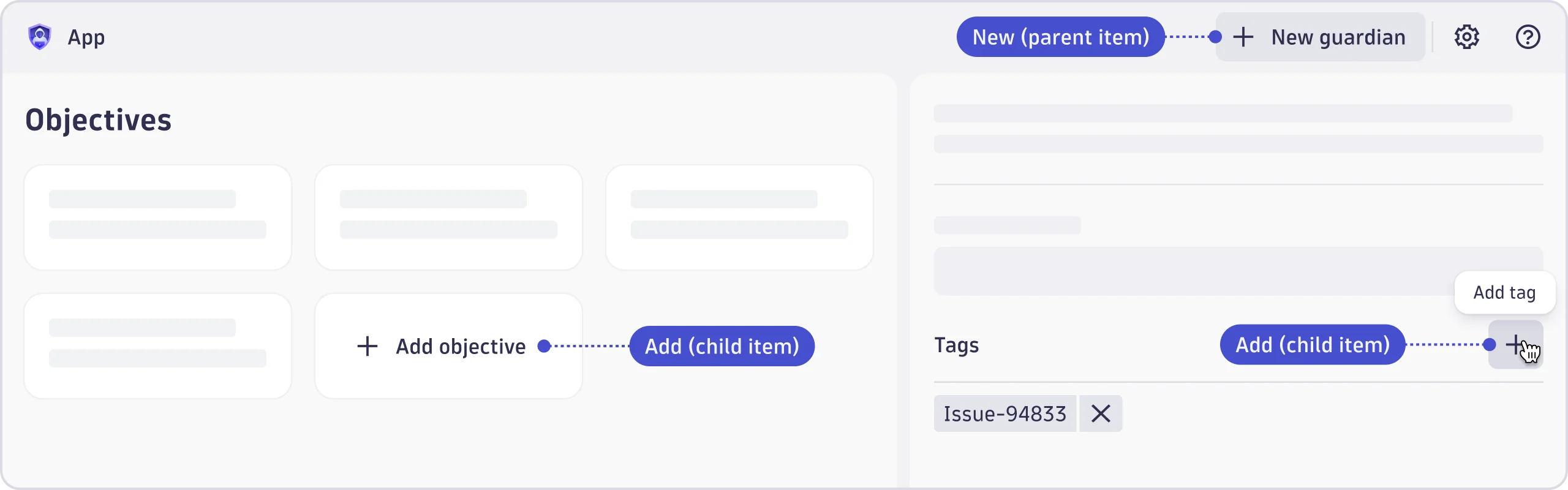
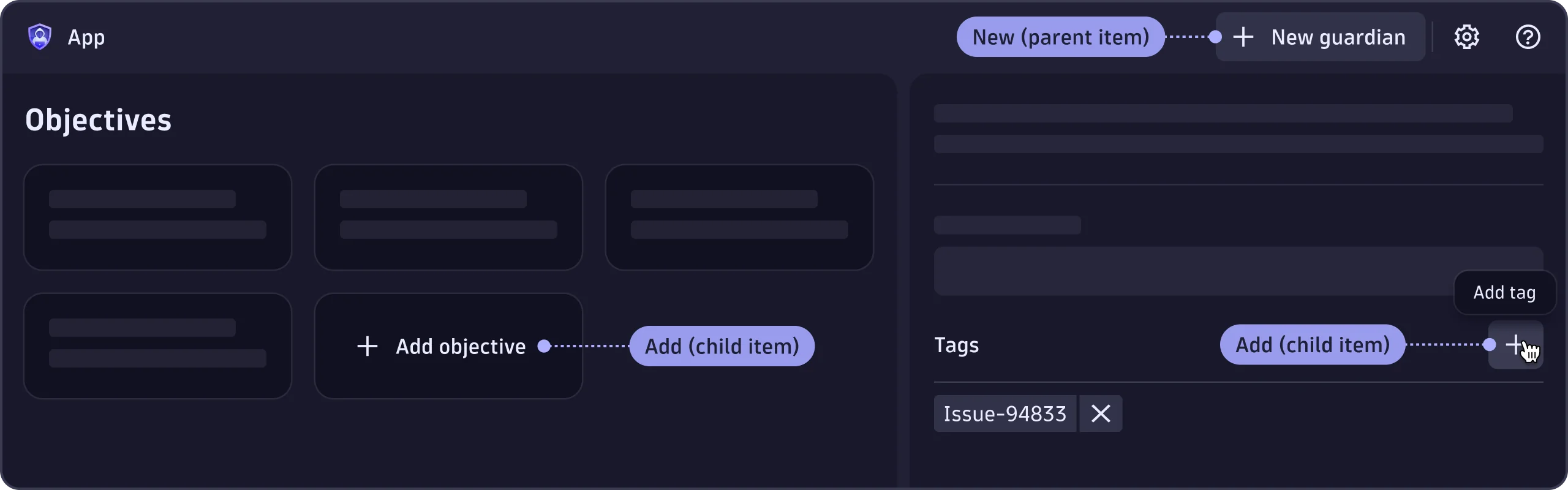
New comes first, then Add, because a workflow, notebook, guardian, etc., must exist before anything can be added to it.
| New (or Create) | Add | |
|---|---|---|
| Definition | Creates a new item | Adds a property to a previously created item. |
| Example | A new guardian, workflow, or notebook | An objective, tag, variable, or task |
| Hierarchy level | Top-level | Child-level |
| User perception | User creates something new | User adds to something existing |
| Opposite action | Delete, Delete permanently | Remove, Clear |
| Visual treatment | Primary call-to-action, high-emphasis. Appears at the top-right of a list view or in an empty state. It sits higher in the visual hierarchy when New and Add appear on the same screen. | Secondary action. Carries less visual weight than New, reflecting that it's a lighter, more reversible action. |
| Icon | PlusIcon | PlusIcon |
| Label | New (preferred) or Create | Add |
Removing actions
Removing actions let the user delete, remove, or clear something from a resource, file, input field, or app, for example.
Delete
This action temporarily or permanently eliminates an item from the system. For example, deleting a launchpad or a segment.
In the table below, words in brackets are examples. Replace them with the item to be deleted.
| Do | Don't |
|---|---|
| Move to trash | |
| Delete | Delete forever |
| Delete permanently | Remove [guardian] |
| Delete [guardian] |
When working with documents, use:
- Delete for deleting a whole document. Don't use the item name.
- Delete permanently for permanently deleting a whole document in the Deleted tab.
- Delete [item] for deleting part of the document, such as a notebook section or a dashboard tile → Delete tile, Delete section, Delete task.
To add friction and prevent accidental deletions, we recommend using a confirmation modal with the delete action.
Remove and Clear
Remove breaks the relationship between items, while Clear erases information quickly. The impact of eliminating these items is low and they can easily be added back. For example, removing a tag or clearing a filter.
Often, this action can be understood with an icon alone, for example, if it’s next to a tag. In the table below, the words in brackets are examples. Replace them with the item to be removed or cleared.
| Do | Don't |
|---|---|
| Delete | |
| Remove | |
| Remove [tag] | |
| Remove all | |
| Clear | |
| Clear [filters] | |
| Clear all |
Clearing or removing added items tends to be quick and low-impact, so you don’t need a confirmation modal in this case.
Copying actions
Copying actions let users duplicate, copy, and paste items. Please note the differences between Duplicate and Copy.
Duplicate
This action creates a copy of an existing document, for example, duplicating a notebook or a workflow.
In the table below, words in brackets are examples. Replace them with the item to be duplicated.
| Do | Don't |
|---|---|
| Make a copy | |
| Duplicate | Make a copy of [notebook] |
| Duplicate [notebook] | Clone [notebook] |
| Duplicate | Copy |
| Duplicate [notebook] | Copy [notebook] |
When working with documents, use:
- Duplicate for duplicating a whole document. Don't use the item name.
- Duplicate [item] for duplicating part of a document, such as a notebook section → Duplicate section.
Copy
This action temporarily copies something to the user's clipboard so it can be pasted elsewhere. For example, copying a link, text, generated token, or specific data from a table.
In some instances, the copy action is understood with an icon alone because of the context, such as next to a password or a token. In the table below, words in brackets are examples. Replace them with the item to be copied.
| Do | Don't |
|---|---|
| Duplicate | |
| Copy | Make a copy |
| Copy [link] | |
| Copy | |
| Copy [link] |
Add a tooltip to show that the data was copied. Use "Copied" as the tooltip text—no period or exclamation mark.
When working with documents, use:
- Duplicate to create an exact copy of a whole document.
- Copy [item] for copying (before pasting) part of a document, such as a dashboard tile → Copy tile.
Paste
This action instantly inserts something that was previously copied. For example, pasting a copied link, text, generated token, or specific data from a table.
Paste is usually understood without any visual cue, as users typically use a shortcut, especially if it is in context, such as an input field. Words in brackets are just examples.
| Do | Don't |
|---|---|
| Insert | |
| Paste | Paste copied [link] |
| Paste |
Organizing actions
Organizing actions include pinning, unpinning, favoriting, and unfavoriting items, as ways to highlight specific items and personalize a view.
Pin
This action lets users stick an item somewhere in the UI so it's easily available. For example, pinning an app or document to the dock, or pinning a section to the top of a document.
- Icon—
PinIcon - Label—Pin
- Opposite action—Unpin
In the below table, the words in brackets are just examples. Replace them with the item to be pinned.
| Do | Don't |
|---|---|
| Add to dock | |
| Pin | Add to favorites / Add favorite |
| Pin [app] | Favorite |
| Pin to dock | Star |
| Pin | Bookmark |
| Pin [app] | Pin to Dock |
| Pin to [dock] |
Unpin
This action lets users unpin a pinned item, for example from the dock or the top of a list.
- Icon—
PinOffIcon - Label—Unpin
- Opposite action—Pin
In the table below, replace the words in brackets with the item to be unpinned.
| Do | Don't |
|---|---|
| Remove from dock | |
| Unpin | Remove from favorites / Remove favorite |
| Unpin [app] | Unfavorite |
| Unpin from dock | Unstar |
| Unpin | Remove bookmark |
| Unpin [app] | Unpin from Dock |
| Unpin from dock |
Favorite
This action lets users save an item to the Favorites tab or favorite a file in a folder, for example.
- Icon—
FavoriteIcon - Label—Favorite
- Opposite action—Unfavorite
| Do | Don't |
|---|---|
| Add to favorites | |
| Favorite | Add favorite |
| Favorite | Star |
| Bookmark | |
| Add to bookmarks |
After something is added, it shows in the Favorites tab.
Unfavorite
This action lets users remove an item that was previously added to the Favorites tab, or unfavorite a file in a folder, for example.
- Icon—
UnfavoriteIcon - Label—Unfavorite
- Opposite action—Favorite
| Do | Don't |
|---|---|
| Remove from favorites | |
| Unfavorite | Remove favorite |
| Unfavorite | Unstar |
| Remove bookmark | |
| Remove from bookmarks |
Modifying actions
Edit
This action lets users change a piece of content or an object that already exists in the system. For example, data within a document.
In the table below, replace the words in brackets with the item to be edited.
| Do | Don't |
|---|---|
| Make edits | |
| Edit | Change |
| Edit [workflow] | Make changes |
| Edit | Modify |
| Edit [workflow] | Make updates |
| Update | |
| Rename |
When working with documents, use:
- Edit for editing a whole document. Don't use the item type.
- Edit [item] for editing part of the document, such as a dashboard tile → Edit tile.
Rename
This action lets users change the name of a previously created document or an item within it. For example, renaming a notebook or a workflow task.
In the table below, replace the words in brackets with the item to be renamed.
| Do | Don't |
|---|---|
| Edit | |
| Rename | Modify name |
| Rename [task] | Change name |
| Rename | Edit name |
| Rename [task] | Update name |
When working with documents, use:
- Rename for renaming a whole document. Don't use the item type.
- Rename [item] for renaming part of a document, such as a workflow task → Rename task.
Saving actions
These actions let users save their work or download it to a local system.
Save
Save stores the data from a document or configuration so it isn't lost. For example, saving changes made in a document.
| Do | Don't |
|---|---|
| Store | |
| Save | Sync |
| Save changes | Update |
| Save | |
| Save changes |
When working with documents, use:
- Save for saving a whole document. Don't use the item name.
- Save [item] for saving part of the document, such as a dashboard tile → Edit tile.
Use a confirmation modal to confirm whether users want to exit without saving.
Download
This action transfers a document, or part of a document, from a remote system to a local system.
The words in brackets in the table below are examples. Replace them with the item to be downloaded.
| Do | Don't |
|---|---|
| Export | |
| Download | Export [results] |
| Download [results] | |
| Download [results] [(CSV)] | |
| Download | |
| Download [results] | |
| Download [results] [(CSV)] |
When working with documents, use:
- Download for downloading a whole document. Don't use the item name.
- Download [item] for downloading part of a document in a different format. For example, downloading results as CSV → Download results or Download results (CSV), if you want to specify the format.
Sharing actions
These actions let users collaborate more effectively with colleagues.
Share
Share allows other users to access an item. For example, sharing a document or a link.
- Icons:
ShareIcon,LockIcon - Label—Share
- Related actions—Save, Download, Change owner
The words in brackets in the table below are examples. Replace them with the item to be shared.
| Do | Don't |
|---|---|
| Allow access | |
| Change access | |
| Share | Change permissions |
| Share | |
| Share [link] | |
| Share [link] | |
| Share | |
| Share [link] |
Change owner
This action lets users change the owner of a document.
- Icon—
AccountIcon - Label—Change owner
| Do | Don't |
|---|---|
| Do | Don't |
| Transfer ownership | |
| Change owner | Change ownership |
| Change owner | Ownership settings |
| Update owner |
We recommend using a confirmation modal if changing an owner might cause problems for users.