AI for app development
- Concept
- 8 minutes
Overview
The App Development MCP (Model Context Protocol) server connects your AI assistant to the latest Dynatrace app development resources. Combined with custom instructions in the AGENTS.md file, your AI assistant receives additional context about your project structure, conventions, and development practices. With this integration, your AI assistant can:
- Understand the Dynatrace platform architecture and patterns.
- Build user interfaces with Strato Design System building blocks, including Strato React components and design tokens.
- Align app experiences with Dynatrace Experience Standards.
- Explore SDKs.
- Build DQL queries.
- Execute commands from the Dynatrace App Toolkit.
Use the Dynatrace MCP server when you want your AI assistant to interact with a Dynatrace environment, for example, query and inspect telemetry like metrics, logs, and traces, or help with incident investigation and troubleshooting.
Prerequisites
Before setting up AI assistance for app development:
- Complete the "Before you begin" steps outlined in the Getting started documentation.
- Ensure you have Visual Studio Code 1.102 or higher.
- Install an AI development tool that supports MCP. We recommend GitHub Copilot for Visual Studio Code.
Setup instructions
Step 1: Add the instructions file
-
For new apps—the Dynatrace App Toolkit version 1.5 or higher automatically places the
AGENTS.mdinstructions file in the root of your project. -
For existing apps—copy the AGENTS.md instructions file into the root of your app project repository.
Step 2: Add the App Development MCP server
To add the dynatrace-apps MCP server, ensure you have the Dynatrace Apps VS Code extension version 0.35.0 or higher installed. The MCP server will be installed automatically—no manual setup required.
Step 3: Configure your AI tool
GitHub Copilot in Visual Studio Code
- Open the Copilot chat window and select "Configure tools" to access AI tool settings.
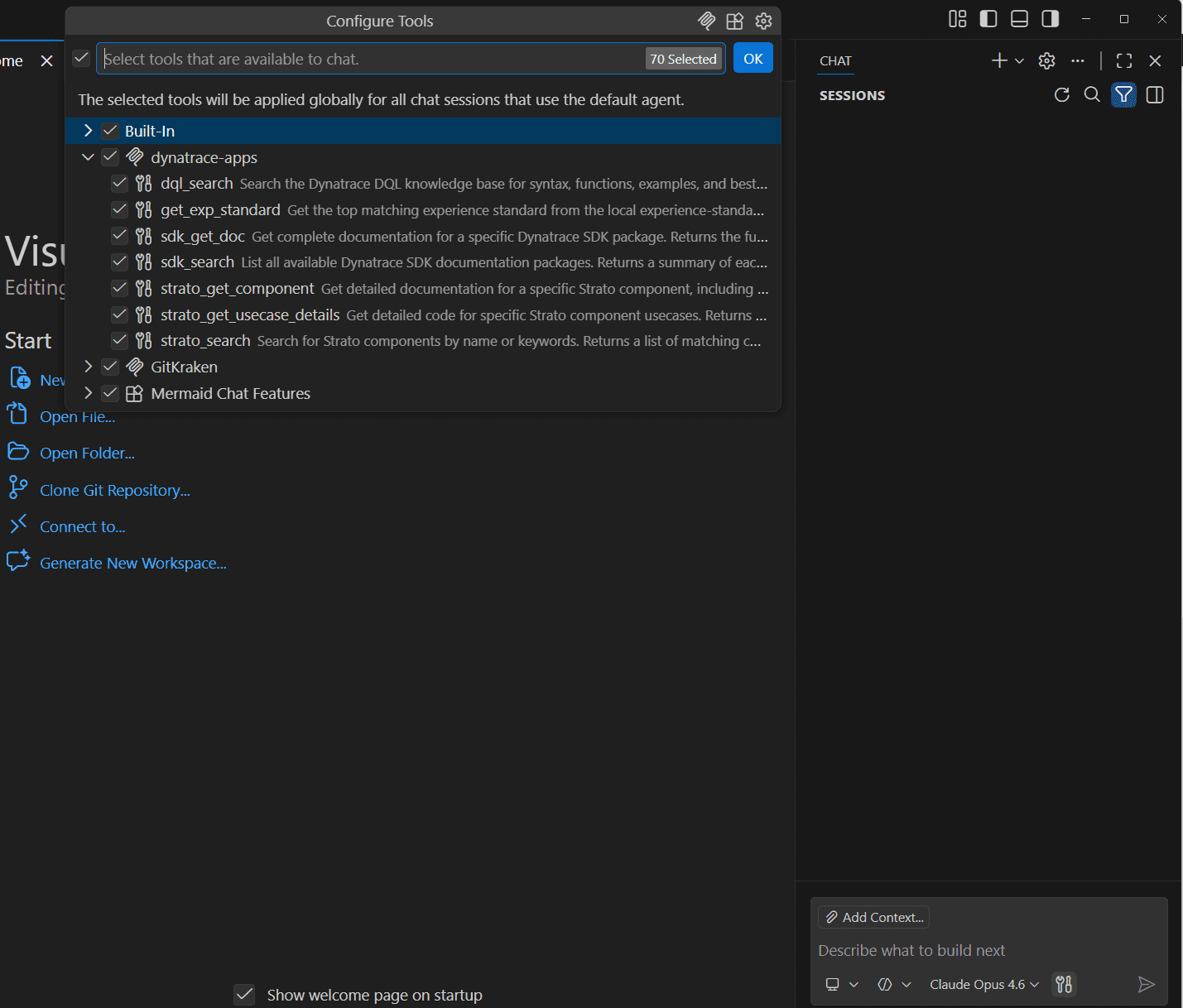
- Alternatively, you can open the MCP Server list by pressing
⌘⇧P(macOS) orCtrl+Shift+P(Windows/Linux), then typingMCP: List Servers.
Make sure the MCP server and all available dynatrace-apps tools are activated. This enables AI-assisted development directly within VS Code.
Step 4: Confirm that the dynatrace-apps MCP server is working correctly
Test the setup by asking GitHub Copilot:
- Which Strato component can I use to display a numeric return value of a DQL query?
- How can I query all logs with ERROR status?
In the Copilot chat, you should see it invoke tools from the dynatrace-apps MCP server before providing its response.
Available tools
The App Development MCP server exposes these tools:
strato_search—searches Strato components by name or keyword.strato_get_component—gets Strato component docs (props, TypeScript types, examples, imports).strato_get_usecase_details—gets code for Strato component example use cases.get_exp_standard—gets the latest Dynatrace Experience Standards to help ensure your app follows approved experience patterns.dql_search—searches the DQL knowledge base for syntax, functions, examples, and best practices.sdk_search—lists available Dynatrace SDK documentation packages.sdk_get_doc—gets the full documentation for a Dynatrace SDK package (API reference, parameters, return types, examples).
Start vibe coding
When using AI to generate code, use a capable model, such as Claude Sonnet or Opus.
Once the dynatrace-apps MCP server is set up and running and AGENTS.md is in place, you can start vibe coding a Dynatrace app.
Based on an empty app created with the npx dt-app create logs-viewer command, use AI to display a table of logs.
A simple prompt
You might be tempted to try a simple prompt such as this one:
Fetch all the logs from the past 24 hours and display the timestamp and content in a table.
However, you'll likely notice that AI often struggles to produce a working app. On the first try, TypeScript errors, custom code instead of Strato components, and non-functional DQL queries are common, requiring many follow-up prompts to get the app working.
A more refined prompt
By specifying a particular React hook or Strato component, results are more reliable. See this prompt below:
Fetch all the logs from the past 24 hours using useDql from the Dynatrace TypeScript SDK
and display the timestamp and content in a DataTable from the Strato Design System.

- The DataTable should have pagination of 10 records per page.
- Replace the existing content on the Home page with the new DataTable.
- Important: Use the Strato Design System components wherever possible.
- Important: npm run build should pass without errors.
- Important: npm run lint should pass without errors.
This prompt has the following advantages over the simpler version:
- Specify which React hooks and Strato components to use.
- Avoid custom code; use existing Strato components.
- Help it self-correct by requiring the
buildandlintcommands to pass without errors.
As it works, the AI agent calls MCP server tools—such as strato_get_component, dql_search, sdk_get_doc, and strato_get_usecase_details—to understand how to implement it properly.
Example Home.tsx file created through the refined prompt
import React, { useMemo } from 'react';

import { Flex } from '@dynatrace/strato-components/layouts';
import { Heading } from '@dynatrace/strato-components/typography';
import { DataTable, type DataTableColumnDef } from '@dynatrace/strato-components-preview/tables';
import { useDql } from '@dynatrace-sdk/react-hooks';

type LogRecord = {
  timestamp: string;
  content: string;
};

export const Home = () => {
  // Fetch logs from the past 24 hours
  const { data, isLoading } = useDql<LogRecord>({
    query: 'fetch logs, from: now() - 24h | fields timestamp, content',
  });

  // Define columns for the DataTable
  const columns = useMemo<DataTableColumnDef<LogRecord>[]>(
    () => [
      {
        header: 'Timestamp',
        accessor: 'timestamp',
        id: 'timestamp',
        columnType: 'date',
        width: 'content',
      },
      {
        header: 'Content',
        accessor: 'content',
        id: 'content',
        columnType: 'log-content',
      },
    ],
    [],
  );

  // Memoize the data to avoid unnecessary re-renders
  const logsData = useMemo(() => data?.records || [], [data?.records]);

  return (
    <Flex flexDirection="column" padding={32} gap={16}>
      <Heading>Logs from the Past 24 Hours</Heading>

      <DataTable columns={columns} data={logsData} loading={isLoading} fullWidth>
        <DataTable.Pagination defaultPageSize={10} defaultPageIndex={0} />
      </DataTable>
    </Flex>
  );
};
AI output is non-deterministic. When you try the refined prompt above, you should get a working app, but the exact implementation might look different.
The example code is correct and works well, but you must always review AI-produced code. Here are some improvements you can apply to the code produced by the AI agent:
- Extract the DQL query into a constant instead of passing it inline.
- The memoization shown is not necessary.
- The default page index is 0; you don’t need to set it.
Preview your app
To preview your app, run the following command:
npx dt-app dev
Once the preview builds, you should see a paginated logs table.